Liquib 1.1
- New Features
The most significant improvements with Version 1.1 of Liquib are the ability
to Upscale effects to produce high resolution images, and a powerful new
Scripting feature. Several new capabilities were included as a result
of thoughtful ideas from customers -- your suggestions are always welcome and much
appreciated! Here is a summary of Liquib 1.1 enhancements:
-
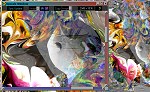 The Upscale function is available when the current source
image is larger than the screen size. Manipulations can be performed
conveniently and efficiently on an image scaled to fit within the main Liquib
window. Then, when an interesting picture develops, the Upscale Window
can be used to recreate and display the image at the resolution and quality of the
original source image. The Save With
Special Options screen provides additional choices for saving images at
full-scale.
The Upscale function is available when the current source
image is larger than the screen size. Manipulations can be performed
conveniently and efficiently on an image scaled to fit within the main Liquib
window. Then, when an interesting picture develops, the Upscale Window
can be used to recreate and display the image at the resolution and quality of the
original source image. The Save With
Special Options screen provides additional choices for saving images at
full-scale.
- A new Melt Effect emulates paint runs, causing image segments to
elongate and slowly sag downwards. A single click begins a single large
Melting spot, while clicking and dragging the mouse creates a line of smaller
'Drools'.
- Two new Pull Types are available for the Stylus and Comb
Tools. The Expand Pull Type enlarges the image under the cursor's
path. The Compress Pull Type has the opposite effect, appearing to
squeeze the image as the Tool passes over.
- Also for the Stylus and Comb Tools, a Colorized Tracks
option has been added. This produces changing colors along the path of the
cursor, with the intensity of the colors proportional to the distances that pixels
are displaced by Tool strokes. A Color Set choice controls
the shades of generated colors.
- Keyboard Command hints can optionally be shown next to the
corresponding buttons on the Liquib Tools panel, and below the buttons on
the Edit Tools panel. Type the 'Y' key to toggle on/off the appearance
of these hints, and a Show Keyboard Commands option now appears in the
View Menu. Keyboard shortcuts have been added for most common commands.
-
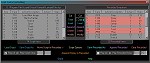 A dynamic Scripting feature provides the ability to record and
replay sequences of Tool and Effect actions, allowing a sort of
choreography of manipulation and motion. Recorded Sequences can be
saved to files. A Script Control and Editing screen provides options
for loading, saving and editing Script files and Recorded
Sequences. The Automatic
Effects Configuration screen has been revamped to provide options for
playing Scripts during Automatic Effects.
A dynamic Scripting feature provides the ability to record and
replay sequences of Tool and Effect actions, allowing a sort of
choreography of manipulation and motion. Recorded Sequences can be
saved to files. A Script Control and Editing screen provides options
for loading, saving and editing Script files and Recorded
Sequences. The Automatic
Effects Configuration screen has been revamped to provide options for
playing Scripts during Automatic Effects.
- The Audio Player
 now includes a Random option,
which plays Play Directory Audio files or CD tracks in random sequence,
rather than sequentially. A Random Sequence option is also available
in the Automatic Effects Configuration screen to choose music randomly
during Automatic Effects.
now includes a Random option,
which plays Play Directory Audio files or CD tracks in random sequence,
rather than sequentially. A Random Sequence option is also available
in the Automatic Effects Configuration screen to choose music randomly
during Automatic Effects.