Liquib 1.2
- New Features
Enhancements with Version 1.2 of Liquib include 3 new Tools, a
new Effect variety and significant Scripting improvements. I'm
especially grateful to Vince Guiliano and Mike McCulley for the suggestions they
contributed for this version, and for their willingness to help with beta testing.
Here is a description of the new features:
- Spray Tool => This new Tool
spews 'droplets' along the path of the mouse with a specified width. The type
of 3D-like droplets sprayed is selectable -- Globule, Drop,
Crater or Cone. The droplet size, relative spacing and intensity
can be adjusted. Normally the droplets are transparent with shading highlights
(optionally with colorized shading), but there is also an option to apply Paint
droplets of a specified color. The Spray Tool can add some interesting
textures to images.
- Smear Tool => Smearing applies
blurriness or fuzziness to an image using various selectable methods (Streak,
Blend, Meld, Shadow, etc.). One use for this Tool
is to produce a fuzzy, almost pearlescent background to a picture. Then when
other effects are applied, Drops or Bubbles for example, they tend to
really stand out starkly. There are also options to combine various color
adjustments with pixel blending, including Negative Blend and several Swap
RGB choices.
- Wipe Tool => The Wipe Tool can
be used to apply swaths of partial transparency through applied manipulations,
allowing portions of the original source image to show through. The degree of
transparency and the path width can be adjusted, and the edges can optionally be
'feathered'. But Transparency is just one of the options for the Wipe
Tool! It can also be set to Lighten, Darken, Add Color,
Negate Colors and several Swap RGB choices.
- Flow Effect => This is similar to the Wave
Effect, but with curved wave fronts that propagate from the point where the mouse
is clicked towards the center of the image. Two variations are available:
Stream and Whorl. As with the Wave Effect, shading can be
enabled, optionally colorized.
-
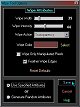 Various Tool Improvements => The
algorithm for rendering Stylus and Comb strokes has been revamped to
produce slightly smoother results. There is a new Snake Pull Method for
the Stylus, and a new Ridges Pull Method for the Comb.
There are 2 new Stretch Tool Methods; Circular and Circular
Elongated. The 4 new Twist Tool Methods, (Contort, Coil,
Writhe and Hurricane), are all variations of 'blunting' the twisted
image -- the prior 2 Methods, (now called Turning Point and
Spiral), have pointy leading edges. The Options screens for each
of the Tools now includes the choice to Use Specific Attributes or
Generate Random Attributes, much like the Effects Options screens have
always provided. Normally, it will likely be preferable to set Specific
Attributes so that particular desired results are achieved. However, it
might be fun to occassionally play with applying randomly generated Tool
effects each time the mouse is clicked and dragged -- there is often serendipity in
randomness that might prompt ideas and inspiration in some receptive minds.
Various Tool Improvements => The
algorithm for rendering Stylus and Comb strokes has been revamped to
produce slightly smoother results. There is a new Snake Pull Method for
the Stylus, and a new Ridges Pull Method for the Comb.
There are 2 new Stretch Tool Methods; Circular and Circular
Elongated. The 4 new Twist Tool Methods, (Contort, Coil,
Writhe and Hurricane), are all variations of 'blunting' the twisted
image -- the prior 2 Methods, (now called Turning Point and
Spiral), have pointy leading edges. The Options screens for each
of the Tools now includes the choice to Use Specific Attributes or
Generate Random Attributes, much like the Effects Options screens have
always provided. Normally, it will likely be preferable to set Specific
Attributes so that particular desired results are achieved. However, it
might be fun to occassionally play with applying randomly generated Tool
effects each time the mouse is clicked and dragged -- there is often serendipity in
randomness that might prompt ideas and inspiration in some receptive minds.
-
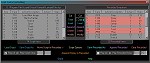 Scripting Enhancements
=> Much greater control has been added to the Script Editing function. Portions of Scripts
can be played, and ranges of Steps within individual Tool and Effect
Sequences can be played. The Options for Scripted Tool
Sequences can be modified, so that actual Attributes such as Width,
Type, Intensity and Method can be adjusted. The
Options for individual Actions within Effect Sequences can also
be modified (an Action occurs each time the mouse is clicked -- i.e. each
Drop, Dribble, Bubble, etc.). Unwanted Effect Actions
can be deleted. This provides a great deal of potential for experimentation
and refinement of Scripts.
Scripting Enhancements
=> Much greater control has been added to the Script Editing function. Portions of Scripts
can be played, and ranges of Steps within individual Tool and Effect
Sequences can be played. The Options for Scripted Tool
Sequences can be modified, so that actual Attributes such as Width,
Type, Intensity and Method can be adjusted. The
Options for individual Actions within Effect Sequences can also
be modified (an Action occurs each time the mouse is clicked -- i.e. each
Drop, Dribble, Bubble, etc.). Unwanted Effect Actions
can be deleted. This provides a great deal of potential for experimentation
and refinement of Scripts.
-
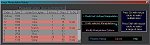 Manipulation History => The
Image Manipulation History screen
has been redesigned to allow modifications to the parameters of past Tool and
Effect manipulations. This works much like the Script Editing
Modify function, showing an Options screen to allow changes to
Attributes. The last Undone manipulation can also be modified
through the History screen, so it is possible to Undo the last effect,
modify some of its parameters, and then Redo it. After the Process
History button is pressed, History will be reconstructed as needed, taking
into account any Undos and modified parameters. Progress is now displayed
during the reconstruction (which can sometimes take a long time). Progress is
also now displayed during Upscale rendering (which can take even longer!).
Manipulation History => The
Image Manipulation History screen
has been redesigned to allow modifications to the parameters of past Tool and
Effect manipulations. This works much like the Script Editing
Modify function, showing an Options screen to allow changes to
Attributes. The last Undone manipulation can also be modified
through the History screen, so it is possible to Undo the last effect,
modify some of its parameters, and then Redo it. After the Process
History button is pressed, History will be reconstructed as needed, taking
into account any Undos and modified parameters. Progress is now displayed
during the reconstruction (which can sometimes take a long time). Progress is
also now displayed during Upscale rendering (which can take even longer!).
- Multiple Monitors => The View Menu
now includes a Multiple Monitors Display option, similar to what was
implemented with the most recent versions of Kaleider and Phota.
When toggled on, rendered scenes will be transmitted to any secondary monitors
attached to the computer, uncluttered by controls, menus, cursors, dialogs, etc.
Click to review Liquib 1.1
enhancements