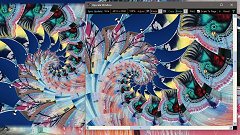
Click this miniature Liquib screen to view a larger image =>

Liquib treats an image as if it were a fluid. It produces the sort of distortions and manipulations that might occur on a liquified surface, including drop, wave, marbled paper and Droste type effects. It is a graphics tool (or toy) that translates mathematics into visual imagery. Some Liquib simulations are fairly realistic, while others would never be seen in nature. Liquib is not overly contrained by reality or inhibited by stodgy notions of rationality.
|
Tools and Effects can be manually applied to express
your creativity with unique transformations. Or you can relax and be
entertained by the Automatic Effects feature. Watch as images
are contorted, distorted and transmuted by randomly chosen manipulations,
always fresh and evolving. Liquib effects can be reflected
onto mirroring panels to create Tiles, which can optionally be centered
to maximize symmetries. The visual display can be accompanied by music
from the Audio Player. Liquib display sequences can be captured
to Video, and actions can be Scripted to create choreographed
performances of dynamic art.
Click this miniature Liquib screen to view a larger image => |
|
Click here to see a few more Liquib Sample Images
Click for a description of the latest enhancements: Liquib 3.2 and 3.2.1
The features offered by Liquib are summarized below:
 and
and
 ,
showing only the currently active Tool or Effect. The
,
showing only the currently active Tool or Effect. The  button for each can be clicked to show the full panel of buttons at the side,
allowing a Tool or Effect variety to be chosen:
button for each can be clicked to show the full panel of buttons at the side,
allowing a Tool or Effect variety to be chosen:
 A Tool is applied by clicking and dragging the mouse across a displayed
image to create a particular transformation. The Stylus and Comb
Tools, for example, are intended to emulate 'marbled paper' type effects, as if
the image surface were wet paint. Stretch, Shrink, Grow,
Twist, Slash, Contort , Rumple and Warp Tools
produce various distortions of a picture. Spray applies droplets of
configurable sizes, spacing and styles, Clone replicates an image segment,
Bloom radiates petals around a central point, Erupt flings fragments,
Whisk drags image edges, Droste produces recursive picture-within-picture
effects, Mutate deforms images according to mathematical transformations,
Shine applies various lighting effects, Mosaic creates a colored tile
version of the underlying image, Lift raises various image based elements and
splays them outwards from the center, Tint shifts image pixels with color
gradients, Mesh produces shapes composed of colored strands, Relief
highlights edges to create a sense of depth, Smear creates blurry, fuzzy regions
within an image and Wipe produces partial transparency and other color
transitions along its path.
A Tool is applied by clicking and dragging the mouse across a displayed
image to create a particular transformation. The Stylus and Comb
Tools, for example, are intended to emulate 'marbled paper' type effects, as if
the image surface were wet paint. Stretch, Shrink, Grow,
Twist, Slash, Contort , Rumple and Warp Tools
produce various distortions of a picture. Spray applies droplets of
configurable sizes, spacing and styles, Clone replicates an image segment,
Bloom radiates petals around a central point, Erupt flings fragments,
Whisk drags image edges, Droste produces recursive picture-within-picture
effects, Mutate deforms images according to mathematical transformations,
Shine applies various lighting effects, Mosaic creates a colored tile
version of the underlying image, Lift raises various image based elements and
splays them outwards from the center, Tint shifts image pixels with color
gradients, Mesh produces shapes composed of colored strands, Relief
highlights edges to create a sense of depth, Smear creates blurry, fuzzy regions
within an image and Wipe produces partial transparency and other color
transitions along its path. |
 Effects are manipulations that evolve over time, for example after a
Drop is initiated by clicking the mouse, the ripples will spread and undulate
until they finally dissipate entirely. For each type of Effect, a single
mouse click produces one occurrence of the effect, while clicking and dragging the
mouse creates a series of usually smaller effects. Clicking and dragging with
the Drop Effect, for instance, will produce a trail of 'Dribbles'.
Wave, Bubble, Vortex, Melt, Flow, Quake,
Aura, Beam, Frost, Bolt, Mirage, Cloud,
Blaze, Burst, Plop and Crater Effects similarly move and
transform. Effect actions can be paused or captured at any point.
Effects are manipulations that evolve over time, for example after a
Drop is initiated by clicking the mouse, the ripples will spread and undulate
until they finally dissipate entirely. For each type of Effect, a single
mouse click produces one occurrence of the effect, while clicking and dragging the
mouse creates a series of usually smaller effects. Clicking and dragging with
the Drop Effect, for instance, will produce a trail of 'Dribbles'.
Wave, Bubble, Vortex, Melt, Flow, Quake,
Aura, Beam, Frost, Bolt, Mirage, Cloud,
Blaze, Burst, Plop and Crater Effects similarly move and
transform. Effect actions can be paused or captured at any point.
|
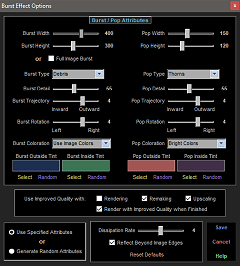 available for each Tool and Effect, providing parameters to control such
characteristics as size, intensity, method, etc. that are applicable to that
particular Tool or Effect. The range of options for the
various Tools and Effects can add great versatility to their use,
sometimes entirely changing their results. The Stretch Tool, for
example, can make a fine adjustment to a face, or it can skew a whole image,
depending on the Stretch Area Affected setting. A Shifting Colors
Shading option for Drops, Waves, Bubbles, Flows and
Frost produces Effects that seem to pulsate with continually shifting
colors.
available for each Tool and Effect, providing parameters to control such
characteristics as size, intensity, method, etc. that are applicable to that
particular Tool or Effect. The range of options for the
various Tools and Effects can add great versatility to their use,
sometimes entirely changing their results. The Stretch Tool, for
example, can make a fine adjustment to a face, or it can skew a whole image,
depending on the Stretch Area Affected setting. A Shifting Colors
Shading option for Drops, Waves, Bubbles, Flows and
Frost produces Effects that seem to pulsate with continually shifting
colors.
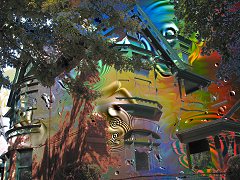 merges the current evolving display with a static background, which might be either
a solid color or another image. The background areas can be defined by either
a pre-defined shape or a stencil image, which can optionally be created dynamically
based on the current screen. The Mask Options screen is available to
configure the characteristics of Masking. It is also possible to create
custom Mask Stencil images with the Create Mask function.
merges the current evolving display with a static background, which might be either
a solid color or another image. The background areas can be defined by either
a pre-defined shape or a stencil image, which can optionally be created dynamically
based on the current screen. The Mask Options screen is available to
configure the characteristics of Masking. It is also possible to create
custom Mask Stencil images with the Create Mask function. button (or just hit the Enter key) to quickly generate a
randomly selected Tool or Effect manipulation with randomly chosen
characteristics. Right-click (or type the F8 key) to perform a random variation of
the currently selected Tool or Effect.
button (or just hit the Enter key) to quickly generate a
randomly selected Tool or Effect manipulation with randomly chosen
characteristics. Right-click (or type the F8 key) to perform a random variation of
the currently selected Tool or Effect.
 performs a sequence of actions for a
particular Tool or Effect. While the general operation of each
Sequon is pre-determined, there is also typically an element of randomness,
partly dependent on how parameters are currently set. Several standard
Sequons are available for each Tool and Effect, and it's also
possible to create and store Custom
Sequons that perform your own favorite action sequences. The
performs a sequence of actions for a
particular Tool or Effect. While the general operation of each
Sequon is pre-determined, there is also typically an element of randomness,
partly dependent on how parameters are currently set. Several standard
Sequons are available for each Tool and Effect, and it's also
possible to create and store Custom
Sequons that perform your own favorite action sequences. The  button
can be clicked to initiate the current default Sequon. Right-click
to
show a menu of currently available Sequons and options.
button
can be clicked to initiate the current default Sequon. Right-click
to
show a menu of currently available Sequons and options.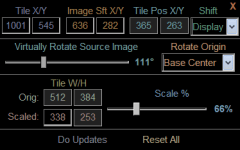 effects
can optionally be reflected onto mirroring panels to form Tiles. A
Center option automatically positions Tiles to maximize
symmetries. Tiles can be manually shifted to adjust their relative
effects
can optionally be reflected onto mirroring panels to form Tiles. A
Center option automatically positions Tiles to maximize
symmetries. Tiles can be manually shifted to adjust their relative
 position within the displayed image, or Wander can be enabled to perform
continuous automated shifting on Tiles according to randomly selected motion
patterns.
position within the displayed image, or Wander can be enabled to perform
continuous automated shifting on Tiles according to randomly selected motion
patterns.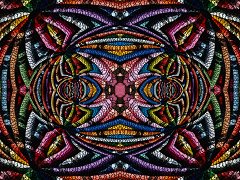 by clicking the
  button (or the F12 key), the current screen
image is wildly contorted to follow the contours of various complex variable
functions. Right-click to select a Complex Variable Function from
the Mapping Menu. When Tools and Effects are applied, the
mapped screen will continually change to show their progression and
evolution, often creating quite surprising, dimensional movements.
button (or the F12 key), the current screen
image is wildly contorted to follow the contours of various complex variable
functions. Right-click to select a Complex Variable Function from
the Mapping Menu. When Tools and Effects are applied, the
mapped screen will continually change to show their progression and
evolution, often creating quite surprising, dimensional movements. are available so that the Liquib
interface can be configured to suit individual preferences, including the
Interface Style and the Interface Scale. A Background
Color can be chosen
are available so that the Liquib
interface can be configured to suit individual preferences, including the
Interface Style and the Interface Scale. A Background
Color can be chosen ) generally
renders much quicker, and is often appropriate while manipulations are created and
evolving on the screen in real-time. Improved Quality mode (
) generally
renders much quicker, and is often appropriate while manipulations are created and
evolving on the screen in real-time. Improved Quality mode ( )
renders with greater precision and usually produces smoother, less ragged
results. The default Quality mode to be used in various situations
(Rendering, Recreating and Upscaling) can be configured
through the Options screen for each Tool and Effect.
The Render with Improved Quality when Finished option will automatically
re-render the current manipulation when that Tool/Effect is finalized.
)
renders with greater precision and usually produces smoother, less ragged
results. The default Quality mode to be used in various situations
(Rendering, Recreating and Upscaling) can be configured
through the Options screen for each Tool and Effect.
The Render with Improved Quality when Finished option will automatically
re-render the current manipulation when that Tool/Effect is finalized.
 ) can be used to re-render the
last Tool or Effect, perhaps with Improved Quality.
Also, the most recently applied manipulation can be conveniently altered and
re-rendered via the Adjust/Remake function (
) can be used to re-render the
last Tool or Effect, perhaps with Improved Quality.
Also, the most recently applied manipulation can be conveniently altered and
re-rendered via the Adjust/Remake function ( ), which makes it
easy to experiment with different parameter variations and combinations, and
quickly see the results.
), which makes it
easy to experiment with different parameter variations and combinations, and
quickly see the results.
 images that are
larger than the screen size, the Upscale Window provides a way to render, display and save
effects that are scaled up to match the resolution and quality of the original
source image. The Scaled Size is adjustable.
images that are
larger than the screen size, the Upscale Window provides a way to render, display and save
effects that are scaled up to match the resolution and quality of the original
source image. The Scaled Size is adjustable. feature provides the ability to record and replay sequences of Tool and
Effect actions, allowing a sort of choreography of manipulation and
motion. Recorded Sequences can be saved to files. The
Script Control and Editing screen provides options for loading, saving and
editing Script files and Recorded Sequences. Remake
Scripts can automatically be saved when images are saved so that those
images can be easily recreated.
feature provides the ability to record and replay sequences of Tool and
Effect actions, allowing a sort of choreography of manipulation and
motion. Recorded Sequences can be saved to files. The
Script Control and Editing screen provides options for loading, saving and
editing Script files and Recorded Sequences. Remake
Scripts can automatically be saved when images are saved so that those
images can be easily recreated. Video files, making it possible
to share Liquib performances over the internet. A Video Options screen is available to configure Video
Format, Size, Frame Rate, Video and Audio Compression
Codecs, etc. Animations can also be saved as sequences of still image
files, and viewed via the Image Sequence
Player.
Video files, making it possible
to share Liquib performances over the internet. A Video Options screen is available to configure Video
Format, Size, Frame Rate, Video and Audio Compression
Codecs, etc. Animations can also be saved as sequences of still image
files, and viewed via the Image Sequence
Player. Tool
or Effect action. An Image
Manipulation History screen allows selection of multiple actions to
Undo, and also makes it possible to alter parameters for past actions and
then reconstruct the manipulations with any modifications. The most recent
action that has been Undone can be reapplied with Redo.
Tool
or Effect action. An Image
Manipulation History screen allows selection of multiple actions to
Undo, and also makes it possible to alter parameters for past actions and
then reconstruct the manipulations with any modifications. The most recent
action that has been Undone can be reapplied with Redo.
 is available so that Liquib
effects can be accompanied by music. It can play most of the common audio
formats (MP3, MIDI, WAV, etc.), as well as audio CDs.
is available so that Liquib
effects can be accompanied by music. It can play most of the common audio
formats (MP3, MIDI, WAV, etc.), as well as audio CDs.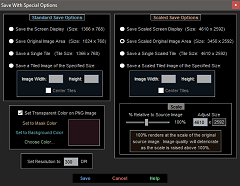 available for saving Liquib images and Tiles
to files. A Quick Save feature can be used to immediately save an
image according to pre-defined parameters for the save directory, file name and
image format. The Save With Special Options screen provides additional
choices for saving images at customized sizes. Remake Scripts can
automatically be saved along with saved images so that the images can easily
be recreated.
available for saving Liquib images and Tiles
to files. A Quick Save feature can be used to immediately save an
image according to pre-defined parameters for the save directory, file name and
image format. The Save With Special Options screen provides additional
choices for saving images at customized sizes. Remake Scripts can
automatically be saved along with saved images so that the images can easily
be recreated. feature generates continuous Tool and Effect manipulations, according
to customized settings available through the Automatic Effects Configuration
screen. Masking and/or Tiling can optionally be activated
at random intervals. Automatic Effects can consist of any mixture of
Random Tools and Effects, Tool and Effect Sequons and Scripted Sequences.
These visual shows can be accompanied by music.
feature generates continuous Tool and Effect manipulations, according
to customized settings available through the Automatic Effects Configuration
screen. Masking and/or Tiling can optionally be activated
at random intervals. Automatic Effects can consist of any mixture of
Random Tools and Effects, Tool and Effect Sequons and Scripted Sequences.
These visual shows can be accompanied by music.Liquib can be downloaded and used for free:
The 32-bit version is still available for Liquib 3.1.1:
Download Liquib 3.1.1 (32-bit) => Liquib 3.1.1 (32-bit) [8.09 MB]
You are also welcome to download the Liquib Screensaver, which is also free!